Step 1: Access Settings
- Open your browser and sign in to your Gmail account.
- In the top-right corner, click the gear icon.
- Select the "See all settings" option.

Step 2: Go to the Labels Section
- In the top bar of the settings menu, find and click the "Labels" tab.
- Scroll down the page a little until you find the corresponding section.
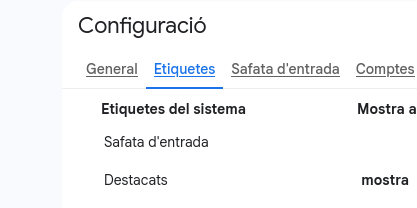
Step 3: Create and Customize the Label
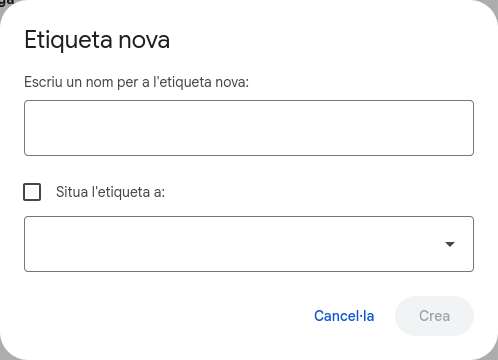
- Click the "Create new label" button.
- A window will open where you can type the name of the label and set it up the way you like.
- Click "Create" to save it and start organizing your email.
Answer the following questions in complete sentences.
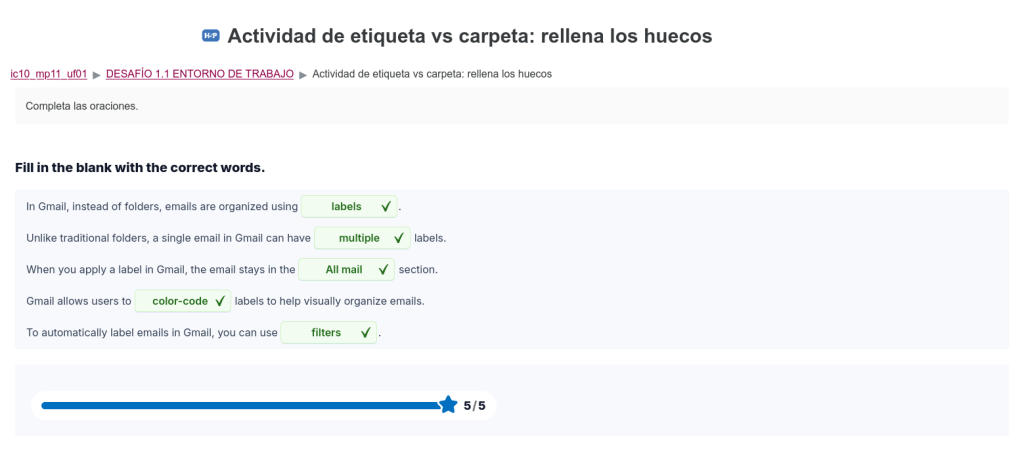
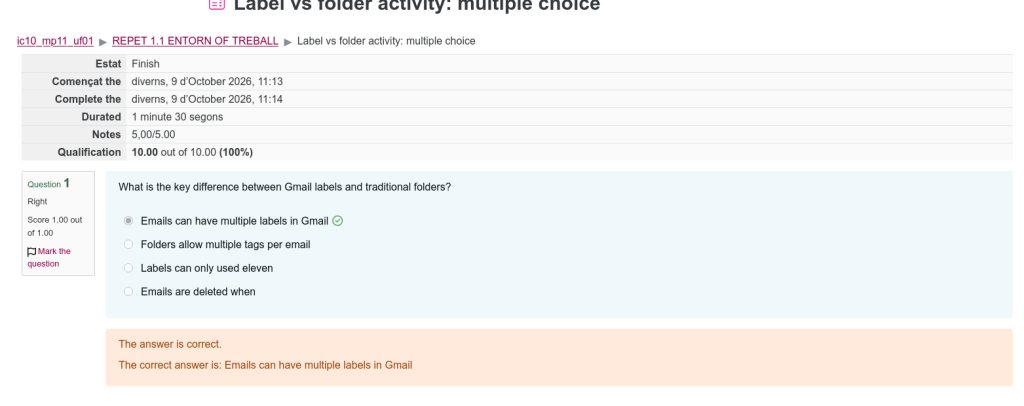
- Explain how labels in Gmail improve your ability to organize emails compared to folders.Unlike folders that store an email in one place, labels let you add multiple tags to a single email so you can find it in different categories. Also, removing a label keeps your email safe in "All Mail" instead of deleting it.
- Describe the process of creating a new label in Gmail and applying it to an email.Click + Create new label on the left panel, type a name, and press Create. Then, open an email, click the Labels tag icon, check your label, and click Apply
- How can using color-coding and filters together make managing a busy inbox easier in Gmail?Filters automatically label new emails, and color-coding makes them easy to spot fast. This helps you quickly see what is important in a busy inbox.
- With the help of the AI, design a stucure for your email organisation. Attach your conversation with Gemini in word WordPress and aply it in your inbox.Create basic labels like Urgent, School, and Personal with colors to organize your emails. Then, copy our chat text and paste it into a new post on WordPress.
